Mapbox Route Optimization Setup
Menu Location: Delivery > Route Optimizer > Settings > Routing Engine
Last Updated: 2026-08-28
Overview
The Route Optimizer can put your delivery stops in the most efficient order using an outside routing service. Mapbox Optimization is one of those services, and it's a good fit if you run several routes with a lot of stops each: it treats a whole day of routing as a single billed request and is free for the volume a typical store generates.
To use it, you create a free Mapbox account, ask Mapbox to switch on the newer "Optimization v2" feature for your account, copy your account's access token, and paste that token into the Route Optimizer settings. This guide walks through all of it.
What you'll end up with: an access token (a long string starting with pk.) pasted into the
optimizer, and the engine set to "Mapbox Optimization v2."
One-time setup. You do this once. After the token is saved, optimizing routes is just a button click.
Before You Start
- Have your work email handy (you'll create the Mapbox account with it).
- Set aside a little time for the beta-access step: Mapbox turns on Optimization v2 by request, and approval can take anywhere from a few minutes to a couple of business days. You can do everything else while you wait.
Step 1 - Create a free Mapbox account
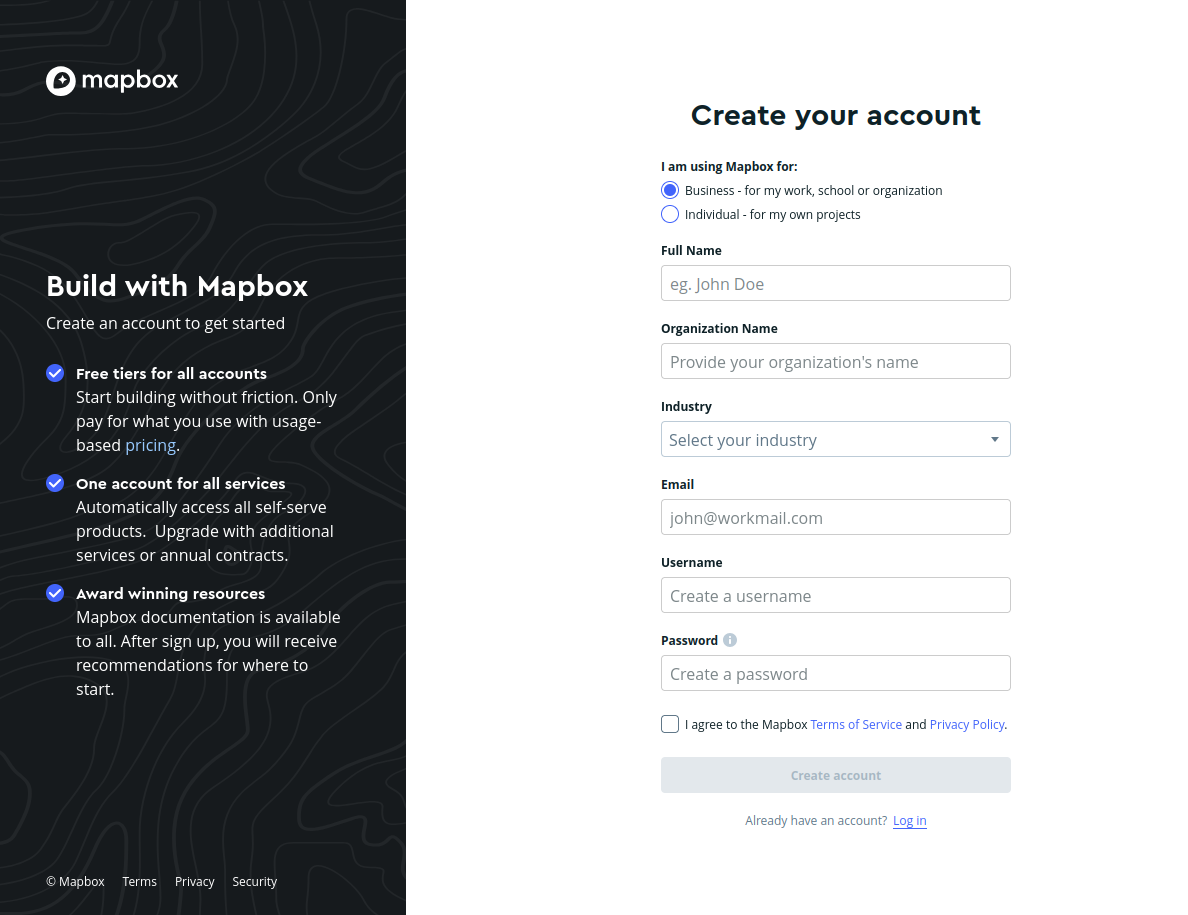
- Go to mapbox.com/auth/signup.
- For "I am using Mapbox for" choose Business - for my work, school or organization.
- Fill in your Full Name, Organization Name, pick an Industry, and enter your work Email, a Username, and a Password.
- Check the box to agree to the Terms of Service, then click Create account.
- Check your inbox for a verification email from Mapbox and click the link to confirm your address.
- You may be asked to add a payment card. This is normal - Mapbox asks for one to unlock the full free tier, but at your volume you should stay inside the free limits and not be charged. (See Costs below.)
Once you're signed in you'll land on your Account page (dashboard).
Step 2 - Request Optimization v2 beta access
This is the step people miss. The newer optimization feature we use is in an early-access ("beta") program, so a brand-new account cannot use it until Mapbox switches it on for you. If you skip this step, the optimizer will show an error like "your account might not have the needed permissions to access the Optimization v2 API."
- Go to the request form: mapbox.com/contact/optimization-v2-api.
- Fill in your First Name, Last Name, the Email that matches your Mapbox account, and your Company.
- In the Message box, say briefly what you're using it for, for example: "Delivery route optimization for a subscription grocery/produce business - a few routes per day, up to a few hundred stops."
- Click Contact Sales to submit.
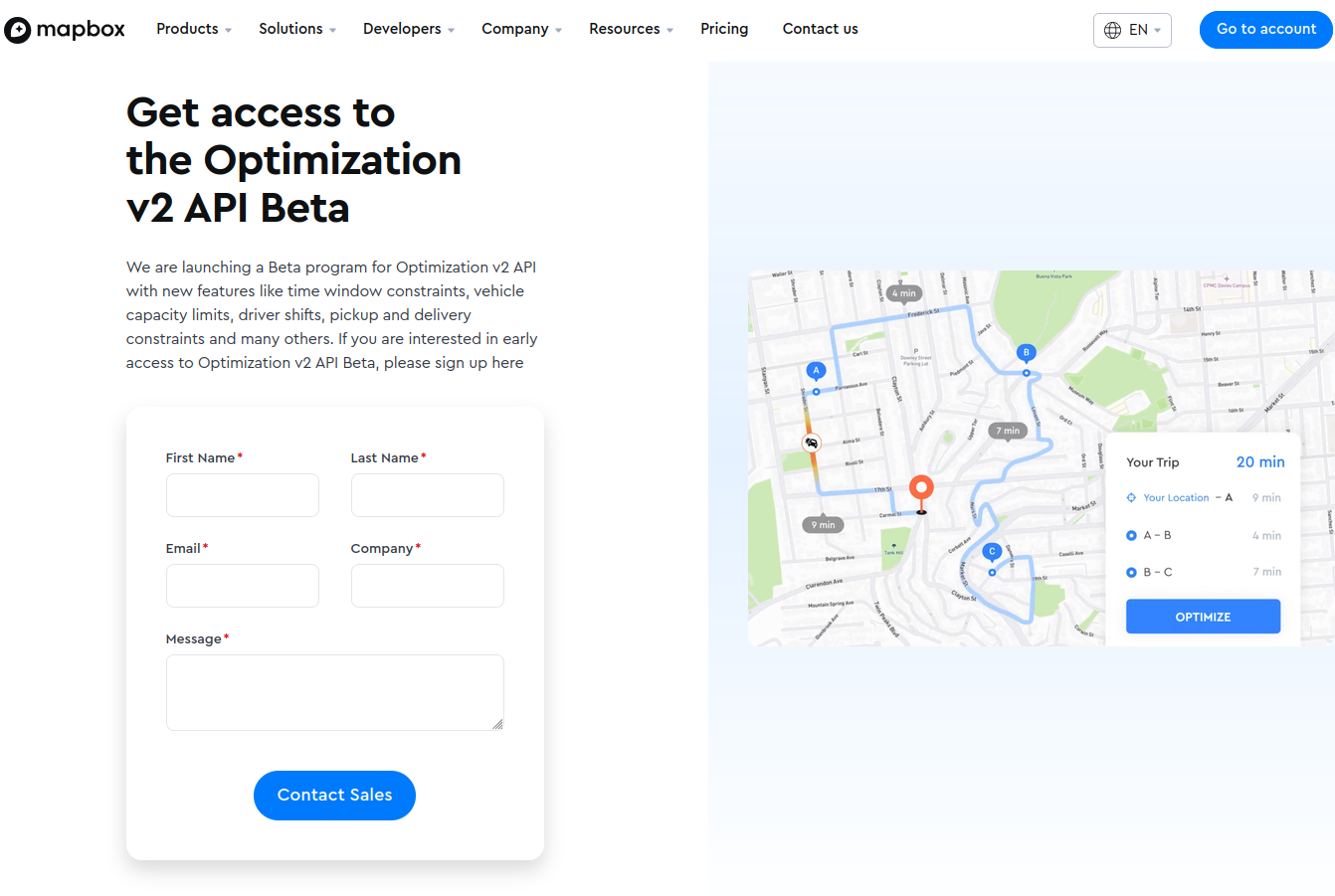
Mapbox will email you when your account is approved. You can continue with Steps 3 and 4 now and start using the token the moment approval lands - nothing else needs to change.
Step 3 - Copy your access token
Mapbox gives every account a ready-made token, so you usually don't need to create one.
- Sign in and go to account.mapbox.com/access-tokens (in the left sidebar, under Admin, click Tokens).
- You'll see a Default public token in the list. It's a long string beginning with
pk.. - Click the copy icon next to it to copy the whole token.
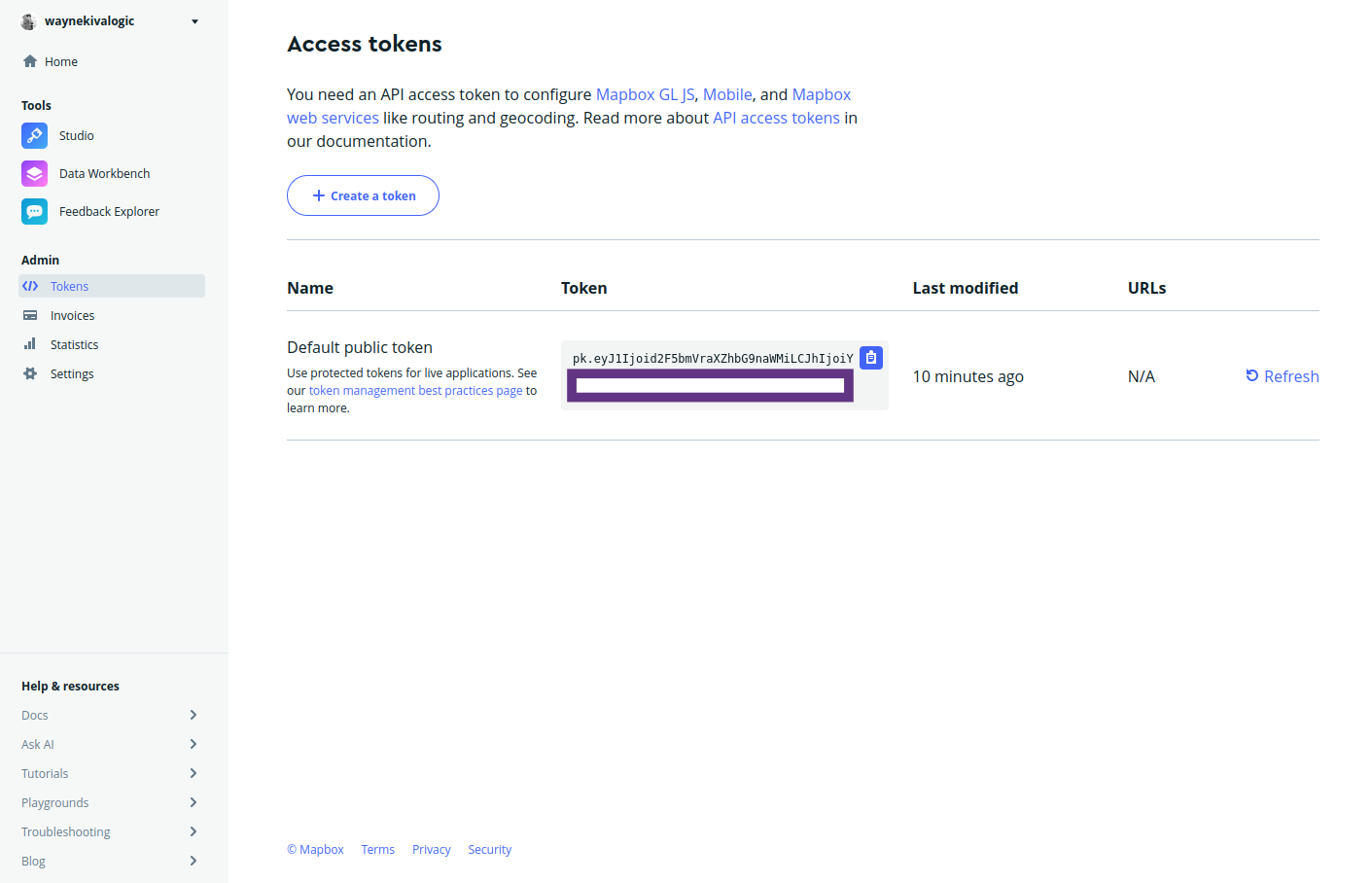
That default token works for the optimizer - no special "scope" or permission needs to be checked. (If you'd rather use a separate token so you can revoke it later without affecting anything else, click Create a token, give it a name like "Route Optimizer," leave the default options as-is, and copy that one instead.)
Keep it private. Your token is like a password for your Mapbox account. Don't post it publicly or email it around.
Step 4 - Paste the token into the Route Optimizer
- In the admin, open Delivery > Route Optimizer.
- Click Settings (the gear button, top right).
- In the Routing Engine dropdown, choose Mapbox Optimization v2.
- A Mapbox Access Token box appears. Paste your token into it.
- Leave Mapbox max vehicles per job at its default unless you have a reason to change it.
- Click Save Settings.
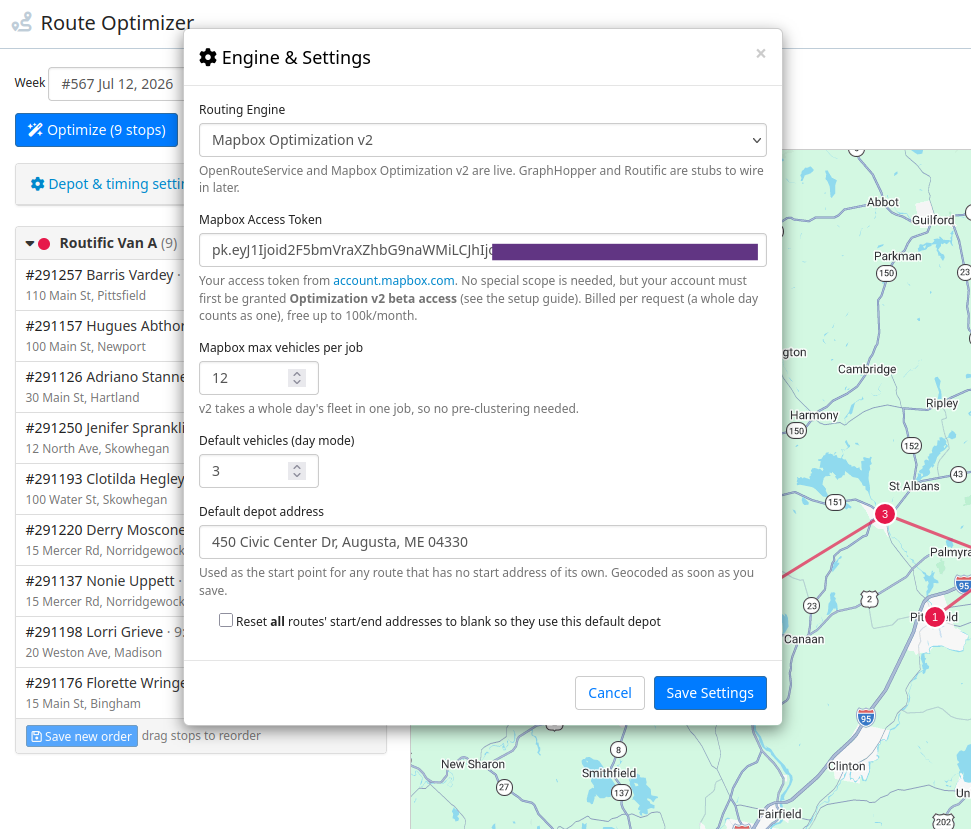
The yellow "No Mapbox access token set" warning at the top of the page should disappear once the token is saved.
Step 5 - Test it
- On the Route Optimizer page, pick a delivery week and a route that has orders.
- Click Optimize for that route.
- After a few seconds you should see the stops renumbered into an efficient order, with estimated arrival times and a total distance.
If it works, you're done. If you get a permissions error, it almost always means Step 2 hasn't been approved yet - wait for the Mapbox email and try again.
Costs
Mapbox bills the Optimization API per request, and one optimization run for a whole route (or a whole day) counts as a single request. The first 100,000 requests each month are free.
A store optimizing several routes a day will make, at most, a few hundred requests a month - far under the free limit. In practice you should expect $0. If you ever grow past the free tier, the next pricing step is about $2 per 1,000 requests. You can watch your usage anytime on the Statistics page of your Mapbox account.
Troubleshooting
"No Mapbox access token set" warning won't go away. The token didn't save or is blank. Re-open Settings, make sure the engine is set to Mapbox, paste the token again, and click Save Settings.
Error mentioning "permissions" or "not valid" when you click Optimize. Your account hasn't been granted Optimization v2 beta access yet (Step 2), or the request is still pending. Confirm you submitted the form with the same email as your Mapbox account, and wait for the approval email.
"Timed out waiting for Mapbox to finish." A very large day can occasionally take longer than expected. Try optimizing one route at a time, or re-run it. If it keeps happening, let us know.
Some stops come back as "not served." Those orders are usually missing map coordinates (a bad or un-geocoded address). Fix the address on the order and re-optimize.
A stop is on the map in the wrong spot. That's a geocoding issue with the address, not the optimizer. Correct the customer's address so it maps correctly.
Recent Updates
- 2026-08-28 - Mapbox Optimization v2 added as a selectable routing engine in the Route Optimizer, alongside OpenRouteService.